Getting started in QRSS (very slow Morse code)
To use one of the preconfigured QRSS modes in Spectrum Lab, select
Quick Settings ... Slow Morse Reception in the main menu, and one of the following items:
- Slow CW, 3 sec/dot : Most common QRSS mode on LF, and some HF bands.
- Slow CW, 10 sec/dot ... Slow CW, 120 sec/dot : Less frequently used, slower scrolling spectrogram, but more FFT gain due to lower RX bandwidth.
After selecting any of the 'slow morse' modes, the program will ask you to enter the audio frequency (in Hertz) :
Enter AUDIO center frequency [Hz] |
When selecting any of the above modes, the program will ask you if you also want to configure the digimode terminal to transmit text in these modes :
Also configure the digimode terminal to TRANSMIT QRSS3 |
Since 2010, there are also some very slow modes with sample rate calibration (per VLF MSK signal or other reference signals) :
- 60 seconds / step, ~ 4 mHz FFT bin width, with sample rate calibration
- 120 seconds / step, ~ 2 mHz FFT bin width, with sample rate calibration
- 600 seconds / step, ~ 1 mHz FFT bin width, with sample rate calibration
The above 'very slow' modes give more SNR due to the extremely low efficient receiver bandwidth. But they require a very stable sampling rate for the analog/digital conversion, which most soundcards are unable to provide (at least not when just been turned on). To circumvent this problem, the effect of a drifting sampling rate can (almost) be eliminated by locking it to a very stable reference signal. To make configuration a bit easier, the program will ask you whether the sampling rate shall be 'corrected' this way:
Turn on the sample rate 'calibration' |
Click 'Yes' if you think your soundcard requires this "stabilisation", or 'No' if your soundcard is stable enough without the continuous sampling rate detection (more on that in an extra document). For example, you could select DHO38 (a transmitter operated by the German Navy on 23.4 kHz) as reference. If you have another suitable transmitter in your 'neighbourhood', preferable in the ground wave range, select that transmitter instead. To do this, open the 'Reference Frequ.' combo in the SR Detector control panel...
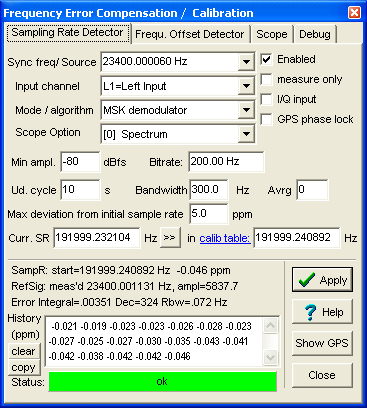
(Screenshot of the sampling rate calibrator panel,
here shown in a later state where the audio processing thread is running again.
While configuring one of the 'very slow' QRSS modes, it is stopped.)
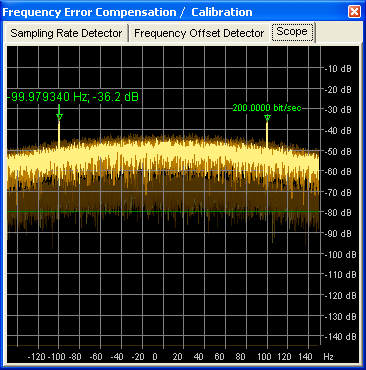
There is a long list of VLF MSK transmitters in it; not all have been tested by the author, and some of them may not be transmitting 24/7 ! So make sure the signal is strong enough, and watch the reference spectrum on the 'Scope' tab in the SR calib control window (when the audio processing thread has been restarted, after confirming the sampling rate as explained further below). If the reference is a sufficiently strong MSK signal, it should look like this (after a few dozen seconds of operation) :
Depending on the frequency of the QRSS- and the reference signal, the program may have
to switch to a new (different) sampling rate. Not all soundcards really support all sampling rates;
and some cards are very poor performers on certain sampling rates.
For example, if you selected DCF77 (a German time signal transmitter on 77.5 kHz)
as frequency reference, the soundcard will have to run at 192 kSamples/second.. only a few cards
(like the Author's favourite, E-MU0202) do actually support this sampling rate.
Other cards (like many onboard audio devices in notebook computers) work much better
on 48 kSamples/sec than on 44.1 kS/sec.
If the automatically selected sampling rate is one of the known 'bad ones' for your audio device,
you can override the program's decision in the following dialog :
Please confirm the soundcard sampling rate |
After that step, the audio processing thread will be started again. A couple of seconds later (or minutes, for the very slow modes), the first spectrum lines should appear on the waterfall (spectrogram). Details about the waterfall display are here.
It's important to adjust the contrast and brightness controls for waterfall. These are the 'B' (brightness) and 'C' (contrast) sliders on the left side of the main window.
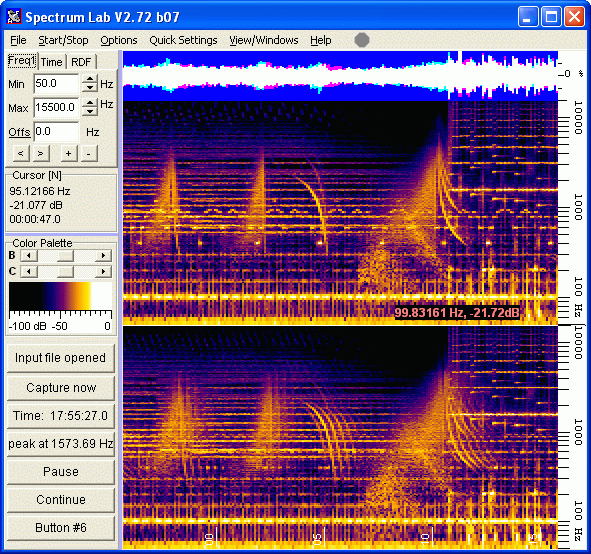
(main window with waterfall display, not QRSS, but with controls on the left
side)
Not shown here (to save space in the installer): The spectrum display area may be split into two parts. The larger upper part shows a narrow-band spectrum around the 'center audio frequeny' (for example 8970 Hz for "VLF Dreamer's Band"). The lower part may show a narrow band spectrum of an "Alpha" signal, aka RSDN-20. It can be used to verify the SR drift compensation / "calibration": One of the peaks in the Alpha spectrum must be close to 11904.7619 Hz. The frequencies of the RSDN-20 transmitters may be displayed in the spectrum graph, as in this VLF broadband display (with some other European VLF transmitters):
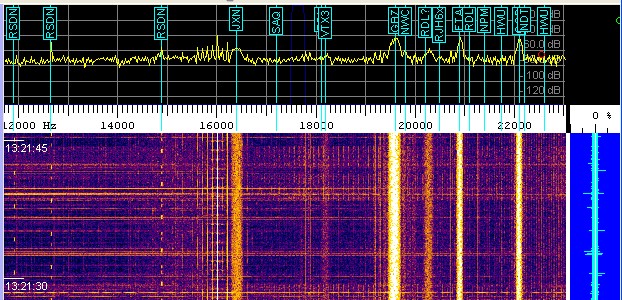
(waterfall with RF station display)
Details on the 'RF station display' are here. The precise Alpha frequencies are listed here . More about the main spectrum display, especially the waterfall, is here .
< To be continued .... >