
HZ1JW Software
Introduction
This page describes the installation and operation of the VOACAP HF Circuit Prediction engine on any machine supporting the GCC compiler. The basic engine runs from a command line and requires no graphical interface. A collection of Python scripts (pythonProp) has been created to provide a GUI.
Instructions and examples on running voacapl may be found in the man page. For the curious, the call tree for the source code (as documented by ftncheck) is available here.
I'd like anyone who feels they have something to offer to get involved, even if it's just to let me know that they've managed to get it running on a different platform/distribution. For that matter, I'd be interested to know of any platforms it doesn't run on.
Top of PageScreenshots
See below for a few screen shots of the voacapl engine running from the command line;
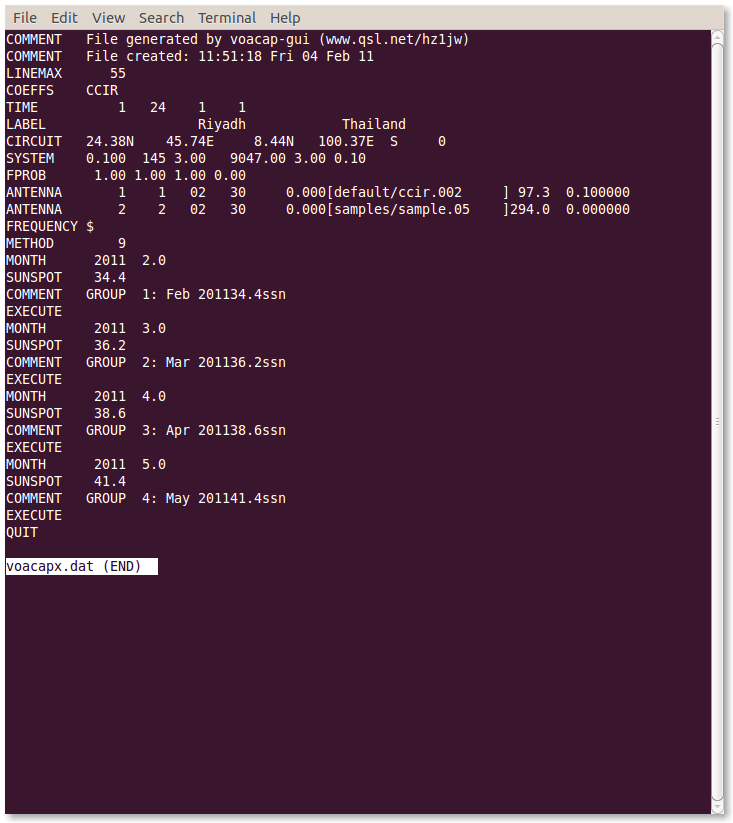
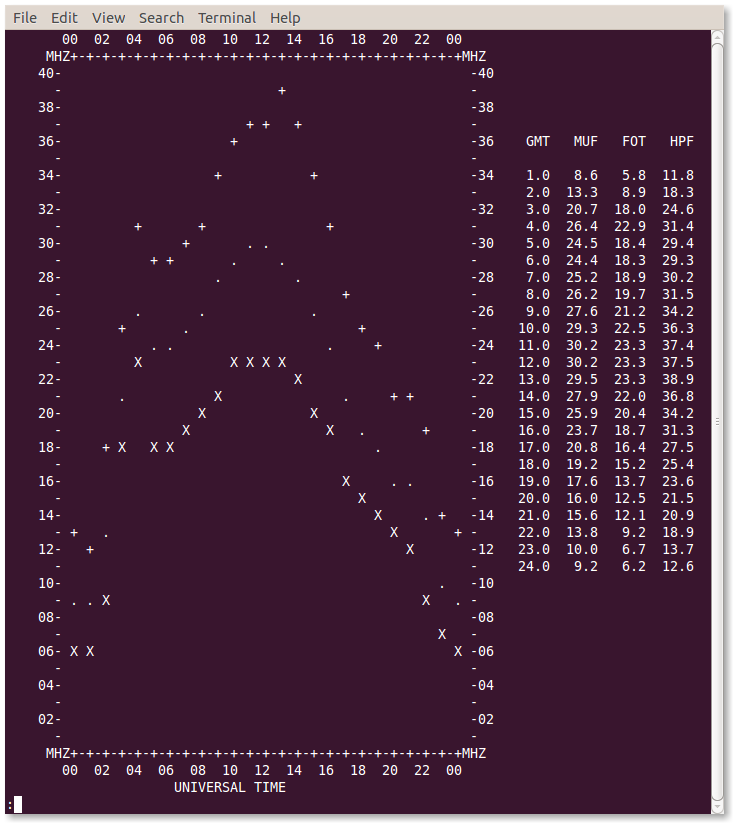
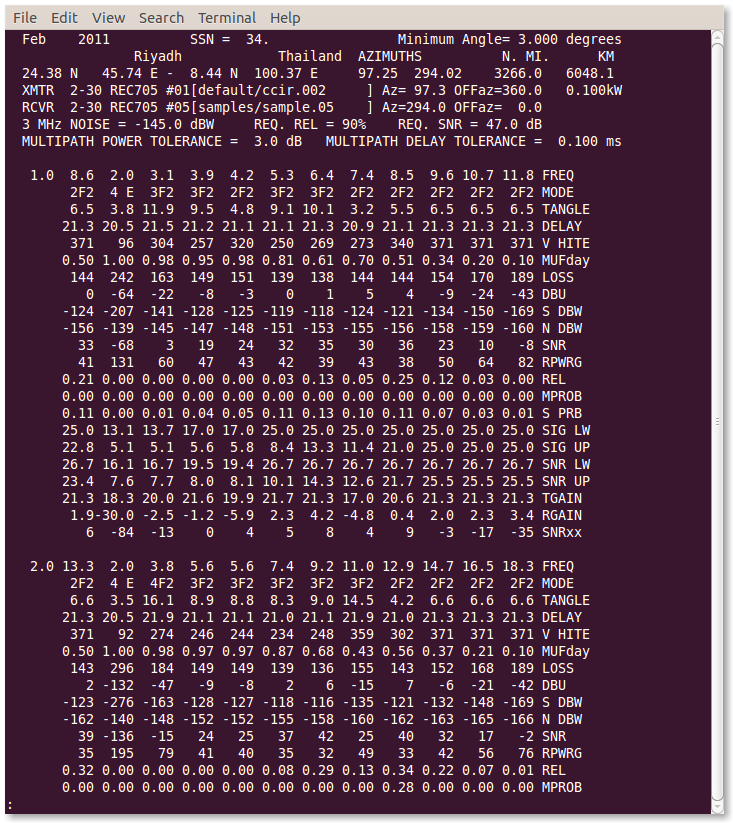 Top of Page
Downloads
The project is hosted on Github and releases are made via https://github.com/jawatson/voacapl/releases.
The python scripts to display the output files may be
downloaded from this
page
A small graphic you may wish to use as an icon is available here.
Top of Page
Installation
Install GFortran
Installation of the voacapl application from source requires the GFortran compiler. This is available from the repositories of most distros. Click on the links below to read distro specific commands on how to install the compiler.
Install GFortran with the following command;
$ sudo apt-get install build-essential gfortran
GFortran may be installed with the following command;
$ sudo dnf install gcc-gfortran
Suse (11.1): GFortran may be installed with the following 'zypper' command (or use the yast gui);
$ zypper install gcc-fortran
Build Application
In this step, the main voacapl engine will be built and installed along with all of the required data files.
Download the voacapl archive, from the downloads section and extract the contents.
Configure / Build / Install: Open up a terminal window and from the ~/voacapl-x.x.x/ folder, use the following commands to build and install the application.
$ ./configure
$ make
$ sudo make install
$ makeitshfbc
Note:The 'sudo' prefix is required on Debian / Ubuntu, other systems to enable writing to the 'bin' directories, other distos will probably require the 'su' command or similar. The 'makeitshfbc' command creates a local copy of the itshfbc directory structure in user's home directory. Hint: A slimmed down binary may be installed by using the 'make install-strip' command instead of 'sudo make install'.
Test the installation by typing the following command;
$ voacapl ~/itshfbc
You should see output similar to the following;
 Run Directory      : /home/jwatson/itshfbc//run
 Opening Data File  : voacapx.dat
 TRANSMIT=+ 15.0 dBi[default/isotrope     ]=ISOTROPE    beam=   0.0  az= 344.0
 RECEIVE =2-D Table [default/swwhip.voa   ]=SWWhip.VOA  beam=   0.0  az= 158.5
 Method 30 Jun 100ssn  Freqs=  6.1  7.2  9.7 11.9 13.7 15.4 17.7 21.6 25.9
If you see something similar to the above (with no error messages) voacapl and the data files are built and installed correctly.
Top of PageAcknowledgements & Disclaimer
None of this would of been possible without the work of the original authors and in particular Greg Hand, the current maintainer who kindly makes the original source code available on his website.
Sincere thanks to Jari Perkiömäki (OH6BG), Alex Hill (G7KSE), Lowell (KC7DX), Fernando (LU2DFM) and Thomas Beierlein (DL1JBE) for bug testing, support and suggestions.
This software is supplied 'as is' without any warranty, implied or otherwise. Enjoy.
Top of Page© 2009-2015 J.Watson (M0DNS/HZ1JW). All rights reserved.