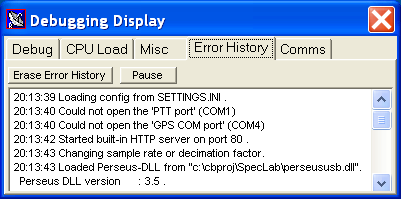
Screenshot of SL's Error History display window,
showing a few 'minor problems' after launching
Spectrum Lab's own (internal) Error History is one of the first things you should check
if the program behaves strange, audio isn't ok, input signal are not displayed, etc.
To open the error history, select 'View/Windows' in SL's main menu, then click on 'Error History'.
The error history is displayed in one of the tabsheets in a window titled 'Debugging Display':
Screenshot of SL's Error History display window,
showing a few 'minor problems' after launching
Note: The 'error history' also shows additional information which may help debugging.
Not all lines in the error history are actually errors. The 'real' errors can also be
logged to a file, as explained in another chapter.
Real error messages are displayed with a red background.
Warnings (e.g. suspicious parameters) have a yellow background.
Everything else (debugging info, etc) uses the default white background, as in the older screenshot shown above.
When 'real errors' occurr, the error history automatically pops up, unless the option
'auto-open' (on the Error History tab) is unchecked.
When running certain applications in Spectrum Lab, the CPU may not be fast enough in some cases.
The total amount of CPU time (percentage) can be examined in the windows task manager (or whatever
Microsoft decided to call it today..), but the task manager cannot tell you which of the different
threads and functions in Spectrum Lab consumes the most CPU time (and thus can be optimized to
reduce the CPU load).
To open SL's own CPU load indicator, select 'View/Windows' .. 'CPU load' in the main menu.
This opens another tab in the 'Debugging' window, which may look as shown below:
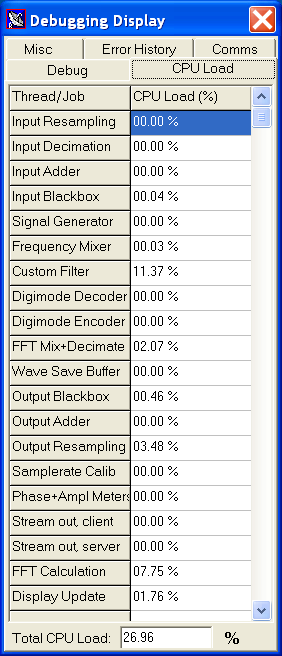
Screenshot of SL's CPU load display
Note: As most windows in Spectrum Lab, the 'Debugging' window is sizeable.
The 'total CPU load' percentage, shown at the bottom of that window, assumes that all threads
are running on a single core (CPU). Because the audio processing, the FFT calculation, and the
display update may run in different threads on different cores (in a multi-core CPU),
the 'total CPU load' may exceed 100 percent without problems on such machines.
TxErrors : Error counter for output to the soundcard,
           or similar output device.
OutBuff  : Output buffer usage (feeding the soundcard, etc).
OutStat  : Status of the output device / last error text
RxErrors : Error counter for input from soundcard, SDR, etc.
InBuff   : Input buffer usage (fed by soundcard, SDR, etc).
InStat   : Status of the input device / last error text
LostIn   : Lost input buffers, caused by audio thread
           not being serviced for too long.
LostOut  : Lost output buffers, i.e. output device running
           out of samples, for dozens of possible reasons.
Analyser FFT calculation time : Average calculation time
           of the main spectrum analyser's Fourier Transform.
Graphics : Pixel format used by the graphics card.
           These days, always 32 bit/pixel.
Alloc'd  : Memory size currently allocated by the program,
           and number of dynamically allocated memory blocks.
TimerFreq: Frequency of a hardware timer in the CPU,
           used for internal timing and speed tests.
[ ] use OutputDebugString() : Only useable when running
           the program under debugger control. When checked,
           error messages (and/or entries for the 'debug
           run log') will also appear in the debugger's
           console window.
TEST (button): Can be used to invoke built-in test functions,
           controlled by the 'mode' value (edit field):
    mode 0 : None of the tests listed below is active.
    mode 1 : Add a 'test signal' to the input from certain
             software-defined radios, early in the
             signal processing chain.
    mode 2 : Let the signal processing thread freeze
             for a few seconds (but not the GUI thread).
             This was used to check the behaviour after
             audio buffer over/underflows, etc.
    mode 3 : Let the GUI thread freeze for a few seconds.
    mode 4 : Provokes an 'access violation' (exception).
    modes 5..100 (?) : Lets BOTH the GUI-thread, and the
             signal processing thread freeze for the
             specified number of seconds.
             Causes a lot of buffer over/underflows
             in the audio processing and TCP/IP network.
             The program should survive any of
             these, without crashing.
Input: COM12, 1000 S/s, 2 * 16 bit/sample, 115200 baud, S16,SYNC.
  Raw: 05B805B7 0BBC8000  0BBC8000 80000BBB  80000BBB 0C450C44  0C450C44
  Buf: 8 %, free: 476 samples, used: 37 samples
  I/O: 908932 bytes rcvd, 37568 packets rcvd, 146577 SYNCs rcvd, 26 garbage bytes,
       90 195 206 208 180 219 187 195  bytes/loop .
  Thd: 1222 loops; 30757 30916 31272 31560 31020 30595 31142 30351  us/loop .
 Rate: 5924 byte/sec received, 0 byte/sec sent.
  Log: 888 kByte written to logfiles\audio_via_com_log.bin.
       Errors at 0x00090032,0x00090035,0x000B378D,0x000B3790,0x000BC409,0x000BC40C,0x000D40DF,0x000D40E2.
Output: 1 Lautsprecher (Realtek High Defi, 1000 S/s, 2 * 16 bit/sample.
  Raw: 0000 0000  0000 0000  0000 0000  0000 0000  0000 0000  0000
  Buf: 50 %, free: 512 samples, used: 512 samples
       0 0 0 0 0 0 0 0  bytes/loop .
  Thd: 0 loops; 0 0 0 0 0 0 0 0  us/loop .
 Rate: 0 byte/sec sent, 0 byte/sec received.
Processing sample rate: 1000.0 Hz
FFT-feeding buffer(s), 2 channel(s) :
 Channel #1: 8192 points = 200 % of FFT size (4096)
  FFT Decimator chain: M = 1 (off)
  Output sample rate : 1000.0 Hz
  Buffer usage       : 8192 of 8192 samples
  Age of samples     : 09.8 .. 18.0 sec (newest, oldest)
 Channel #2: 8192 points = 200 % of FFT size (4096)
  FFT Decimator chain: M = 1 (off)
  Output sample rate : 1000.0 Hz
  Buffer usage       : 8192 of 8192 samples
  Age of samples     : 09.8 .. 18.0 sec (newest, oldest)
Waterfall scroll interval: 40.0 sec
Spectrum Buffer :
  IndexOfLatestEntry : 2
  IndexOfOldestEntry : 0
  NumLinesBuffered   : 3,  max = 4053
  RAM usage in kByte : 65552
Configuration file: SETTING2.INI (contains USER- *and* MACHINE-settings)
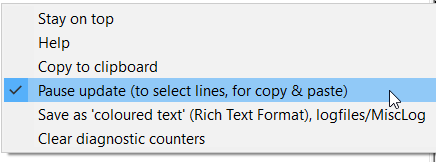

Screenshot with the 'CAT traffic monitor' enabled (old display format)
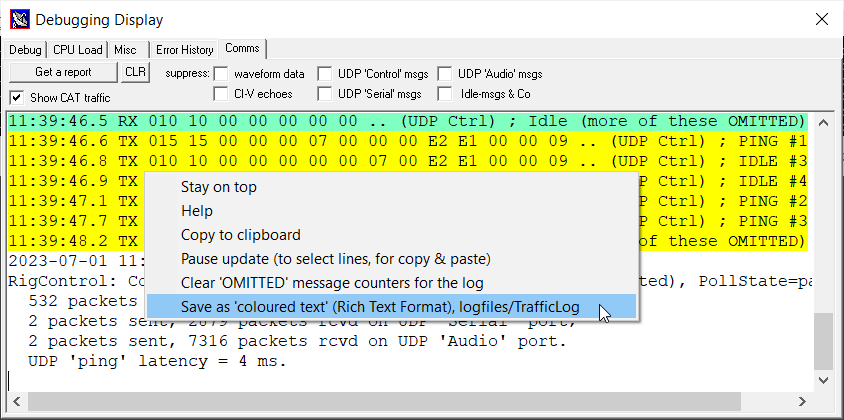
'CAT traffic monitor' with context menu for the 'Rich Text' editor.
18:46:33.0 TX 007 FE FE 94 E0 19 00 FD             (radio ID) ; get radio ID
18:46:33.8 RX 008 FE FE E0 94 19 00 94 FD          (radio ID) ; rig=IC-7300
18:46:33.9 TX 006 FE FE 94 E0 03 FD                (VFO freq) ; read VFO freq
18:46:34.8 RX 00B FE FE E0 94 03 30 02 55 03 00 FD (VFO freq) ; 3550230.0 Hz
18:46:34.9 TX 006 FE FE 94 E0 04 FD                (op mode)  ; read op. mode
18:46:35.8 RX 008 FE FE E0 94 04 03 03 FD          (op mode)  ; CW, filter=3
18:46:35.8 TX 008 FE FE 94 E0 27 11 00 FD          (sp-ctrl)  ; stop spectrum
18:46:36.8 RX 006 FE FE E0 94 FB FD                (OK)
|__UTC___| |    | |___| |  |  |  |     |_______ _ _ (info)    ; comment or
         Dir Length |  Dst/Src|  Sub-command(s) |               decoded value
    FE = CI-V preamble  Addr. Command  or data  FD = CI-V postamble (message delimiter)
  'CAT Traffic' with UDP packets during the log-in phase with an IC-705
19:41:20.4 TX 010 10 00 ..  (UDP Ctrl) ; 'Connect' from port 64282 to 50001
19:41:20.6 RX 010 10 00 00 00 04 00 00 00 .. (UDP Ctrl) ; Control:CONNECTED
19:41:20.6 TX 010 10 00 00 00 06 00 00 00 ..   (UDP Ctrl) ; are you ready ?
19:41:20.7 RX 010 10 00 00 00 06 00 00 ..   (UDP Ctrl) ; Control:I-AM-READY
19:41:20.7 TX 080 80 00 00 00 00 00 00 00 1A FB 00 ..   (UDP Ctrl) ; Log-In
19:41:20.7 RX 015 00 00 00 00 07 00 C3 28 51 36 42 ..  (UDP Ctrl) ; PING #1
19:41:20.7 RX 060 60 00 00 00 00 00 00 00 51 ..  (UDP Ctrl) ; LoginResp:OK!
19:41:20.7 TX 015 15 00 00 00 07 00 00 00 1A FB 00 ..  (UDP Ctrl) ; PING #1
19:41:20.7 RX 015 00 00 00 00 07 00 00 00 51 36 42 ..  (UDP Ctrl) ; PING #2
19:41:20.8 RX 010 10 00 00 00 00 00 01 00 51 36 42 4B ..  (UDP Ctrl) ; Idle
|__UTC___| | |__| |__ hex UDP payload, usually truncated (protocol info) ; comment
           | Length (of the UDP payload)
          Direction (TX=sent from Spectrum Lab's point of view; RX=received)
 Protocol Info:
   (UDP Ctrl)   = packets for/from Icom's "Control" port (e.g. UDP port 50001)
   (UDP Serial) = packets for/from Icom's "Serial" UDP port  (e.g. port 50002)
   (UDP Audio)  = packets for/from Icom's "Audio"  UDP port  (e.g. port 50003)
 Lines without any of the above 'Protocol Infos' in parentheses
 show CI-V payload, extracted from UDP packets or from virtual COM ports.
If you encounter any problems with this program, follow these steps..
In some tough cases (were the program seems to crash, or locks up), you can help to find the problem using a special debugging feature which is built into Spectrum Lab.
When started with the command line parameter /debug, the program will produce a textfile named "debug_run_log.txt" in the installation folder (i.e. the directory where SpecLab.exe has been installed). Each line in that file is marked with the time-of-day, and a rather cryptic description of what has happened, or what went wrong (if the program had the chance to detect that before "dying"). If you create a desktop icon for SpecLab, you can modify it (right-click the icon, then select "properties" (or "Eigenschaften" on a german PC). After the path and filename of the executable, append a single space character, and the /debug switch. The result should look like this:
C:\Spectrum\SpecLab.exe /debug
Then start the program by clicking on the modified icon, or entering the
above line on the windows command prompt. If you don't know how to run
a program from a command line under windows: A nice how-to used to be here.
Alternatively, the installer should have added an item in the windows 'Start' menu under 'All Programs'..'Spectrum Lab'..'Run Spectrum Lab in debug mode'.
This item launches a batch file, which in turn launches Spectrum Lab with the '/debug' switch
as explained above. After SL terminates, the batch file shows the contents of the debug log in an extra console window.
After running Spectrum Lab with the 'debug' switch, the first few lines in the (debug-) logfile may look like this:
19:38:45.9 Logfile created, date 2012-10-15
19:38:45.9 checking instance...
19:38:45.9 Executable: c:\cbproj\SpecLab\SpecLab.exe
19:38:45.9 Compiled  : Oct 15 2012
19:38:45.9 Data Files: c:\cbproj\SpecLab
19:38:45.9 init application...
19:38:45.9 creating main form...
19:38:46.0 Constructing main form
  ... (many lines removed here) ...
19:38:49.7 Sound devices started
19:38:49.7 Back from InitAudioDevices .
19:38:51.1 Launching Sound Thread
19:38:51.1 Clearing digimode chunks
19:38:51.1 Clearing audio chunks
19:38:51.1 Entering audio thread loop
19:38:51.1 First call of RunProcessingChain() ..
19:38:51.1 Back from RunProcessingChain()
If all went well, after quitting Spectrum Lab in 'debug' mode, the last lines in the logfile should look similar to this (there may be more, of course):
19:38:55.7 Beginning to close ....
  ... (many lines removed here) ...
19:38:59.4 Deleting SPECTRUM objects
19:38:59.4 Deleting other buffers
19:38:59.4 FormClose done
19:38:59.4 Ok, all 85 dynamic memory blocks were freed.
19:38:59.4 Reached last termination step; closing logfile.
If you find strange looking lines with one of the following messages in the logfile....
... then please send me a copy of the entire logfile (debug_run_log.txt) via email,
or (preferred) to the Spectrum Lab User's Group mentioned in the next chapter.
( losely based on www.sdr-kits.net/documents/VNWA_Sound_Devices_error_after_Windows10_upgrade.pdf, thanks Jan ! )
See also (older, but related subjects) :
Device ID Out of Range in SoundInOpen
( based on www.sdr-kits.net/documents/VNWA_Windows_10_Privacy_settings.pdf, thanks Jan ! )